
Tired of Managing To-Do Lists & Calendars? This Is For You!
I discovered the last way I will ever plan to take notes and manage my calendar. Completely native, 0 building required.

Most people fail at productivity because the “data entry” phase feels like a second job. You have to open an app, create a project, type a title, set a priority... by the time you’re done, you’ve lost the spark. Then you have to keep the project maintained (terrible I know).
Fortunately the stack is simple, and it requires 0 building.
Google Gemini
Google Keep
Google Calendar
And the rest of Google Workspace
If you’re uncomfortable with Google, then this stack is not for you.
The beauty of this system isn’t that it’s “smart”, but it’s frictionless
Here is exactly how I use Gemini to skip the busy work and keep my head in the game:
1. The “Visual-to-Action” Handshake
Instead of typing out a task list, I just take a photo or a screenshot. If I’m at a whiteboard, I snap a picture. If I’m scrolling through a PDF and see five things I need to do, I screenshot it.
I upload that image to Gemini and say: “Transcribe this and group it into logical categories like Outreach, Marketing, and Operations.”
In seconds, Gemini does the OCR (Optical Character Recognition) and sorting for me. No manual typing required.
2. The Boardroom (Google Keep)
Once Gemini has the tasks, I don’t just let them sit in a chat window. I have Gemini send them to Google Keep.
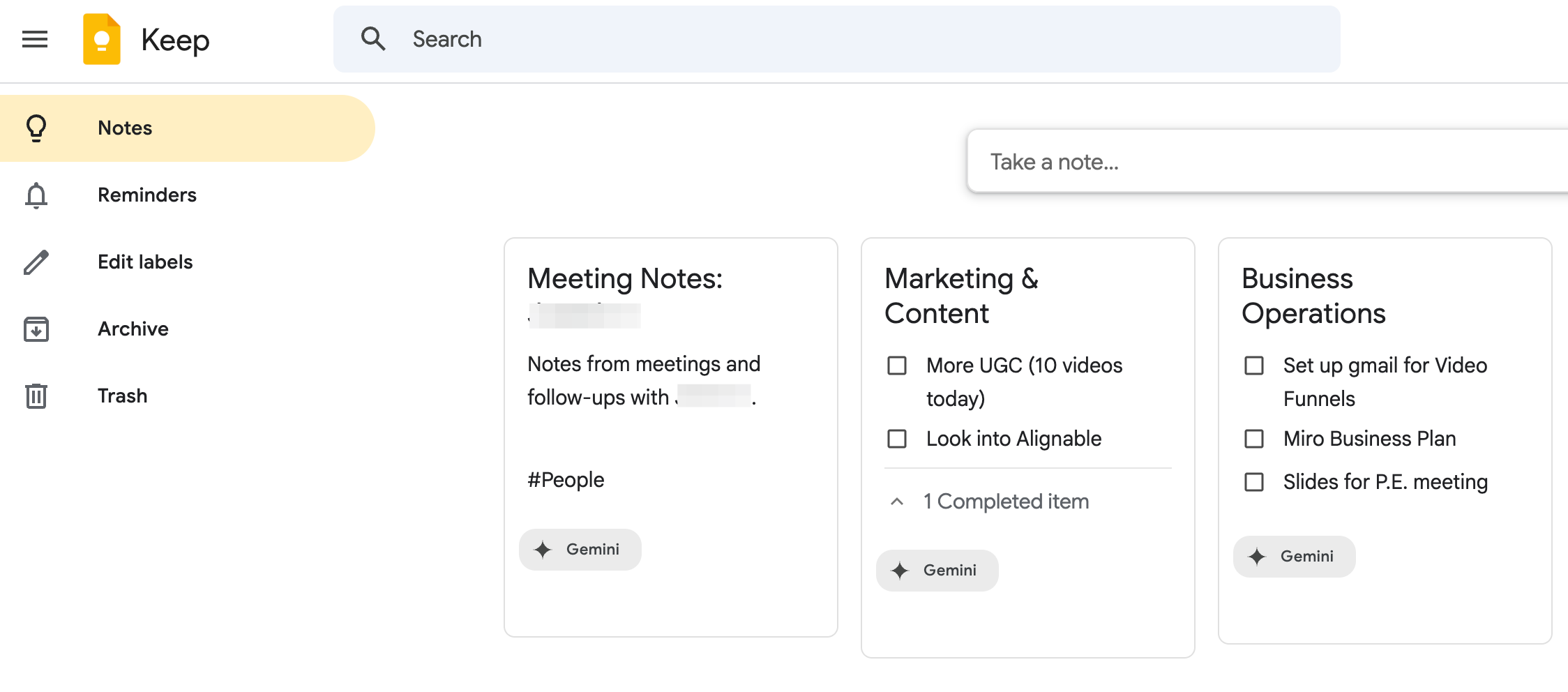
I think of Keep as my “Project Board.” It’s not a flat, boring list; it’s a series of cards.
Outreach Card: All my “Message [Name]” tasks go here.
Marketing Card: UGC videos, collabs, and research.
Business Ops: The “unsexy” stuff like Gmail setups and business plans.
By seeing these cards side-by-side, I get a “big picture” view of my life without the clutter of a 50-item vertical list.
3. Scaling to a CRM (The “People” Note)
If you meet with hundreds of people, a checklist isn’t enough. You need context.
For high-value contacts like “Jourdan,” I have Gemini create a dedicated Text Note. Every time we meet, I tell Gemini: “Add a note to Jourdan’s file that we discussed the Q3 budget.” It appends the notes to his running log.
To keep this from becoming a mess as I scale to 100+ people, I use Labels:
#Projects: For my active boards.
#People: For my meeting logs.
If I’m not meeting with someone this month? I Archive the note. It’s gone from my view, but stays searchable. The moment I type “Jourdan” in the search bar, his entire history pops back up.
4. Taking it Mobile (The Hands-Free Setup)
I don’t wait until I’m at my desk to stay productive. On iPhone, I use the Action Button or a Back Tap shortcut to trigger Gemini instantly.
If I’m driving or walking, I use Gemini Live. I talk to the AI like a real assistant:
“Hey, I just had a thought—add ‘Check on the video funnels’ to my Marketing list in Keep.”
It’s done before I even get home.
5. Taking it a step further
I have not even began to use Gemini with Google Docs, Sheets, or anything else in the suite. I was a bit disappointed in the integration with Google Tasks, but Google Keep solved that problem in spectacular ways.
I’m sure the sky is the limit, you could build out a database with Excel, generate reports and load them into Google Docs, or whatever you desire. Google Gemini is my new favorite hub for productivity, and I’m excited to leave behind my manual efforts across the Calendar, To-Do list, and more.
The Philosophy: Zero Building, Infinite Scaling
This stack works because it doesn’t ask you to be a “system architect.” You don’t need to build a Notion database or learn a new syntax or use a products poorly-made built in AI.
You just see something, snap a photo of it, and tell your AI where it belongs. You’re not managing a tool; you’re managing your life.
If you already use Gmail and a Calendar, you’re 90% of the way there. The only missing piece is letting Gemini do the heavy lifting.
Why not Claude or ChatGPT?
Both of these platforms were my first attempts, but at present both require additional building. Whether you host Claude in headless mode, or use a Google Sheet that you upload into ChatGPT, I found that there wasn’t a quick native way to store the things I wanted to (personal CRM, calendar, projects).
I also don’t want to build anything. I’m tired of building software for no reason and then maintaining it.